
Drivers need to be logged in and active to receive jobs. See our Using the Driver App for more information.
This guide explains how jobs are managed within the Waybox Driver App and how drivers move through each stage of a delivery.
It covers the full job lifecycle from the moment a job is assigned through to completion, including key statuses drivers will see during their shift.
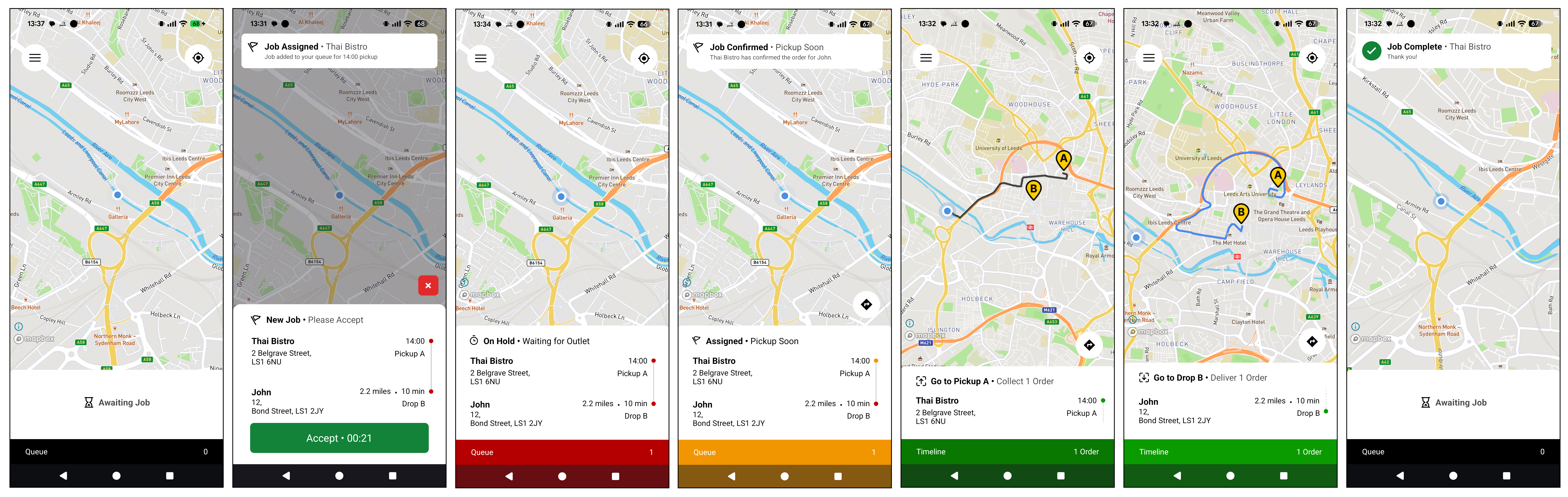
Job Statuses
As a delivery progresses, the driver will see the job move through the following statuses within the Driver App
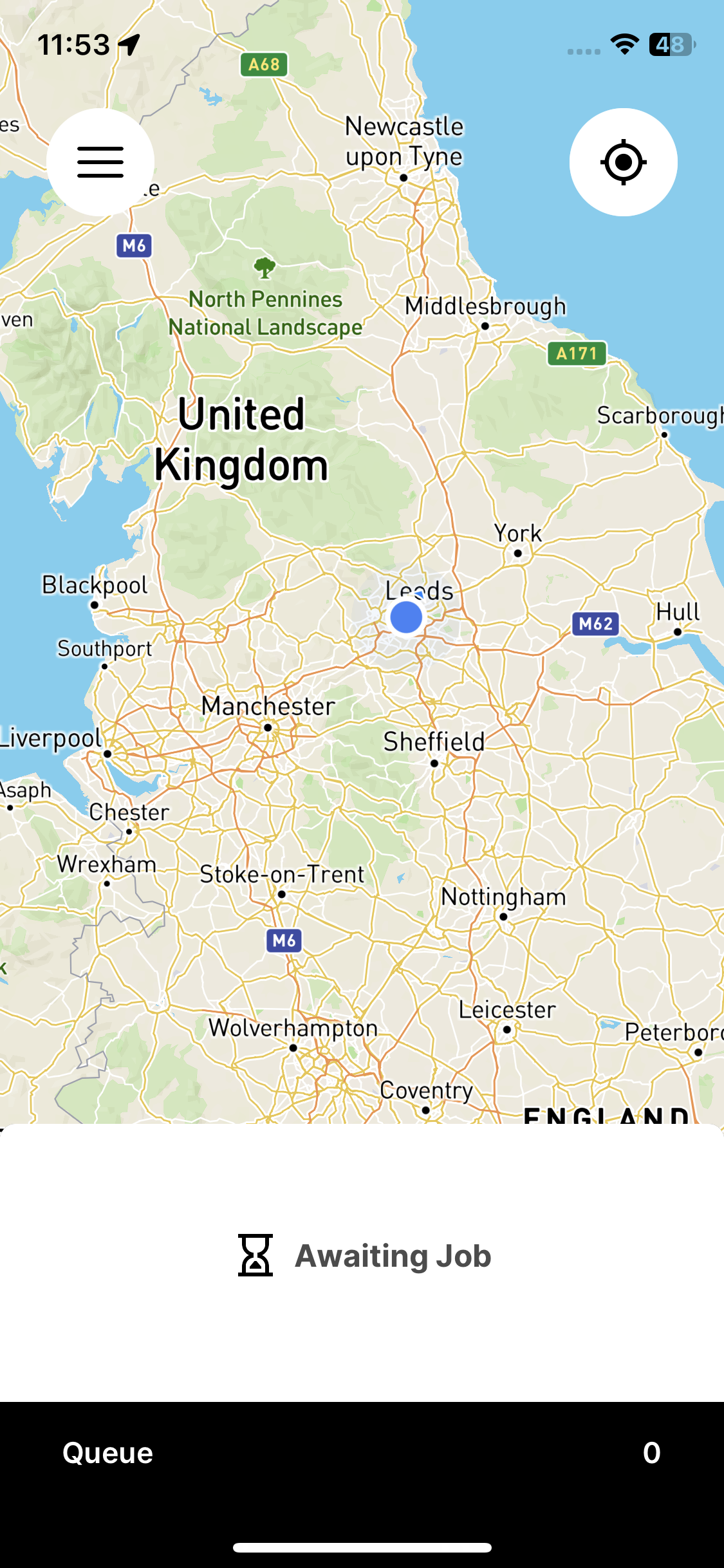
Awaiting Job
When the driver is online and set to Active but does not currently have an assigned delivery, the status shows as Awaiting Job.
At this stage, the driver is available and ready to receive the next job assignment.
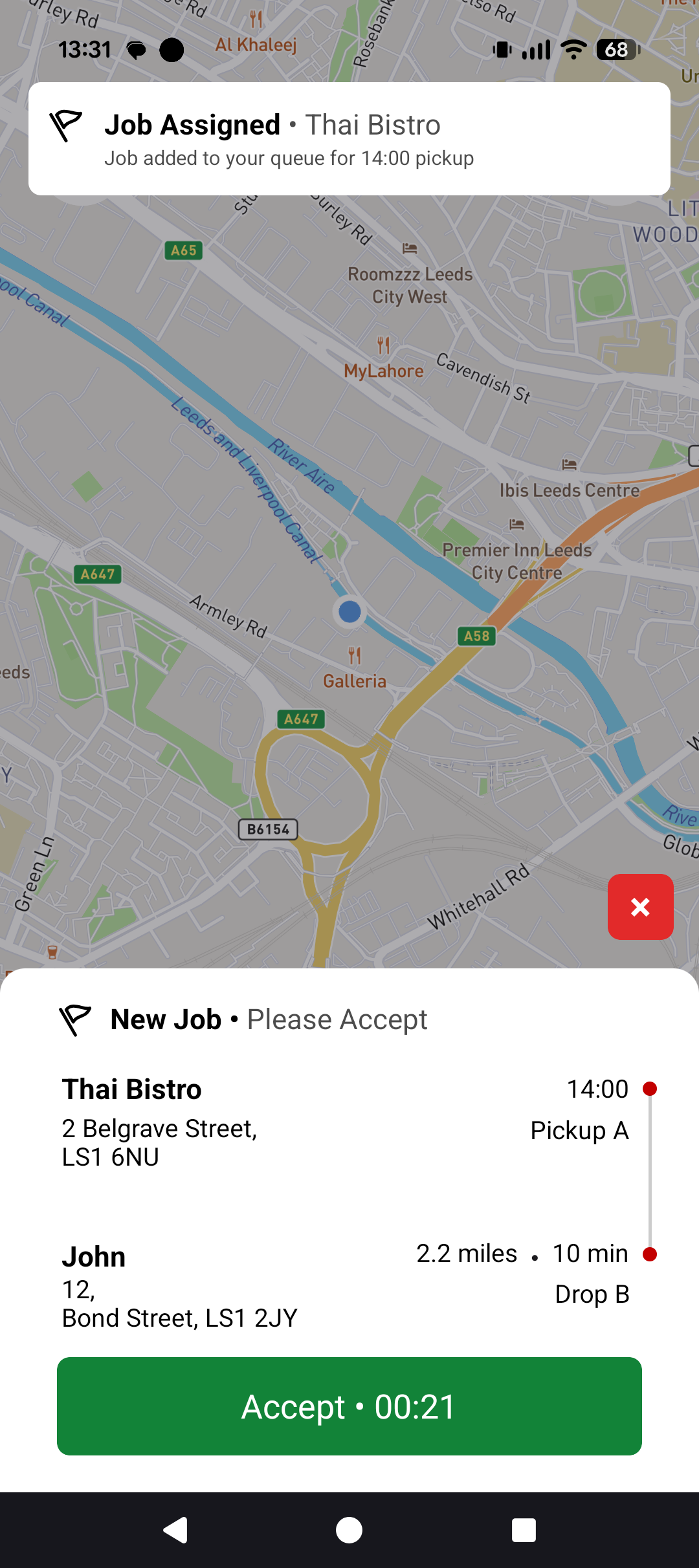
Job Assigned
This status is specific to ‘freelance’ drivers. Drivers can choose to accept or reject the job assigned to them. See our Freelance and Contracted Driver Types guide for more information.
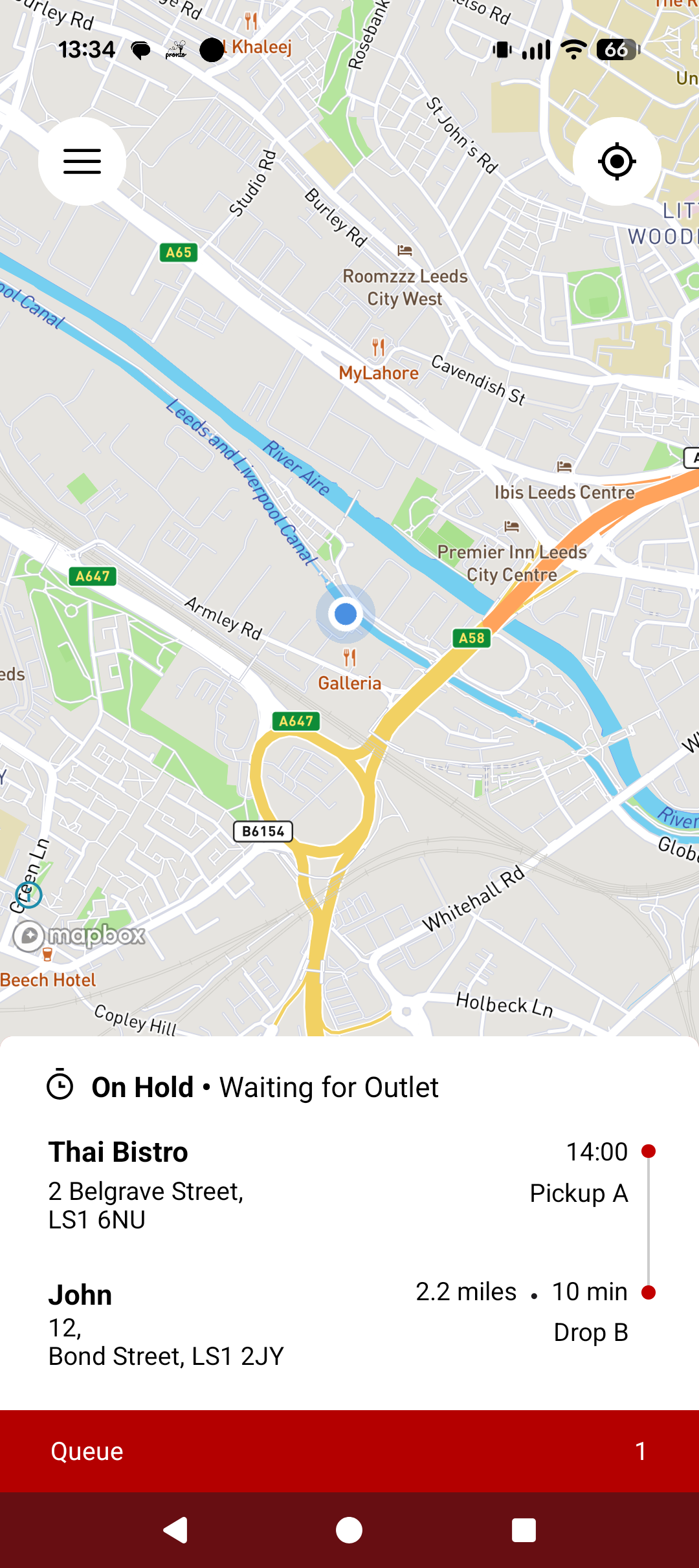
On Hold
When a job is assigned, it appears in the driver's app with the status On Hold.
At this stage, the job remains ‘on hold’ while the outlet accepts the customer's order. The driver does not need to take any action until the order has been accepted.
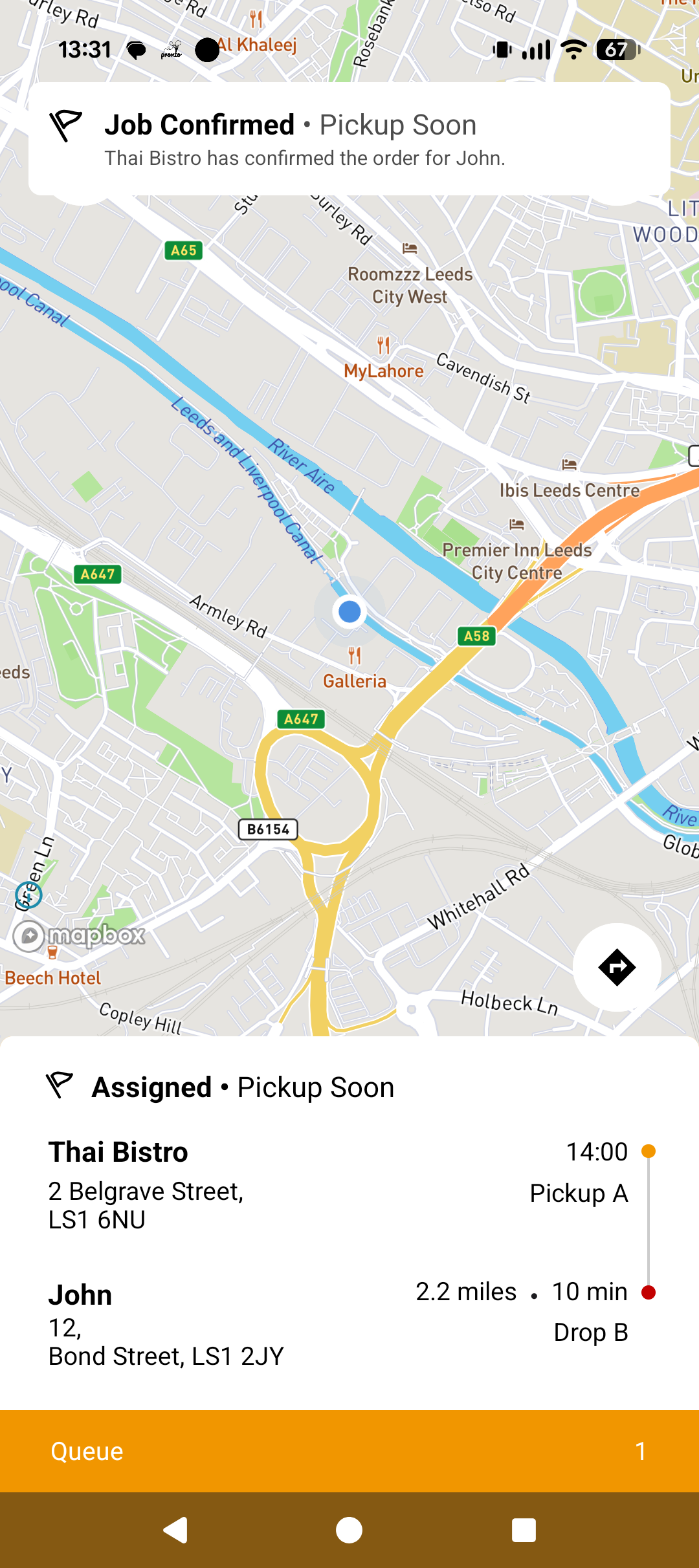
Assigned Pickup Soon
When a job is confirmed and nearing dispatch, it will appear as Assigned Pickup Soon.
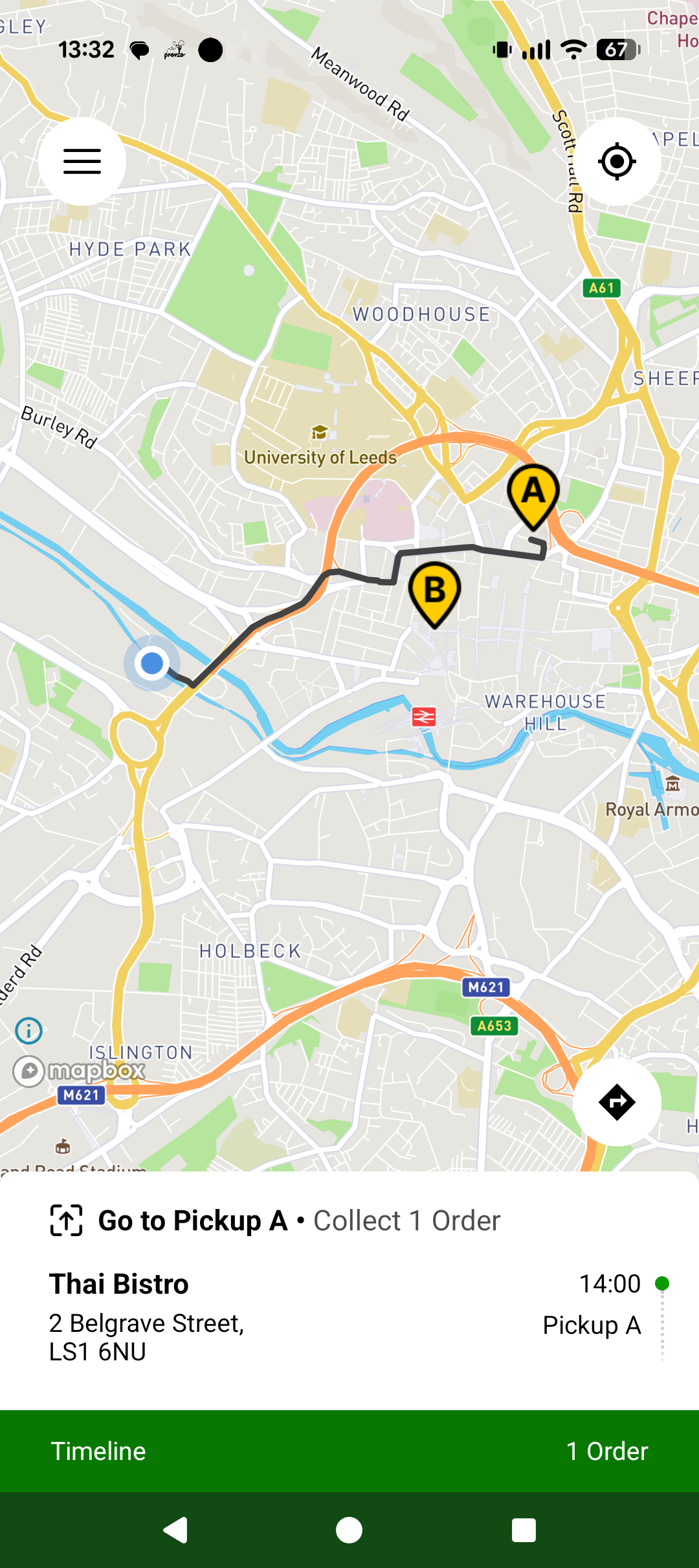
Go to Pickup
Once the outlet has accepted the order, the Driver App monitors the driver's location and estimated travel time.
When the driver should begin travelling, the app automatically notifies them to leave, helping them arrive at the pickup location on time without unnecessary waiting.
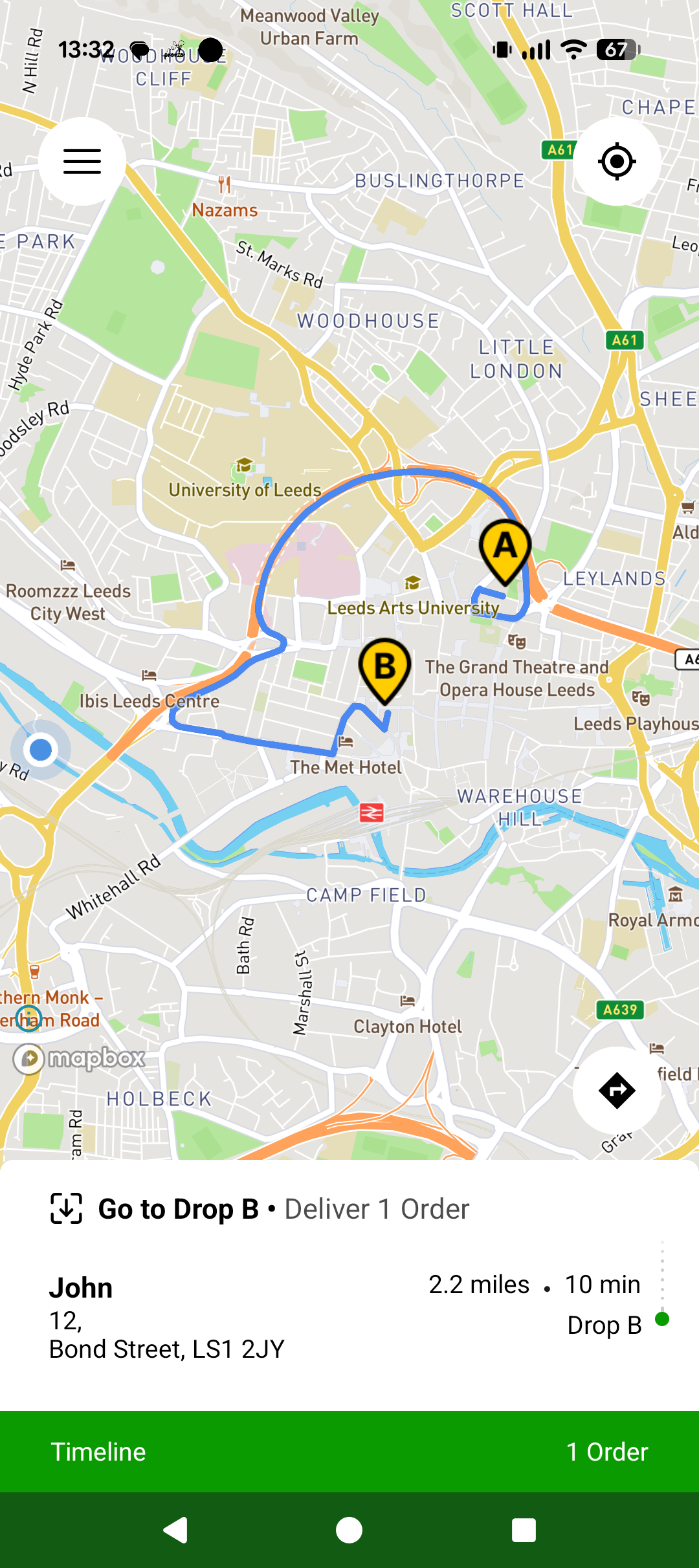
Go to Drop
Once the driver has collected the order from the outlet, the job status changes to Travel to Drop.
The driver should begin travelling to the customer's delivery address.
Job Complete
Once the order has been successfully delivered and the driver confirms completion in the Driver App, the job is removed from view and the driver is now in Awaiting Job status.
.png?cb=3b4edf703574eaad0723a86e08011a9f)
Once the job is complete, it will automatically be added to the driver's ‘Delivery History’ within the app. See our Using the Driver App guide for more information.