
This guide explains the main areas of the Waybox Driver App and how drivers use each section during their working day.
All drivers must be registered and set to ‘Active’ to receive jobs. If a driver has not yet registered, see our How to Register as a Driver guide for more information.
Main Map Screen
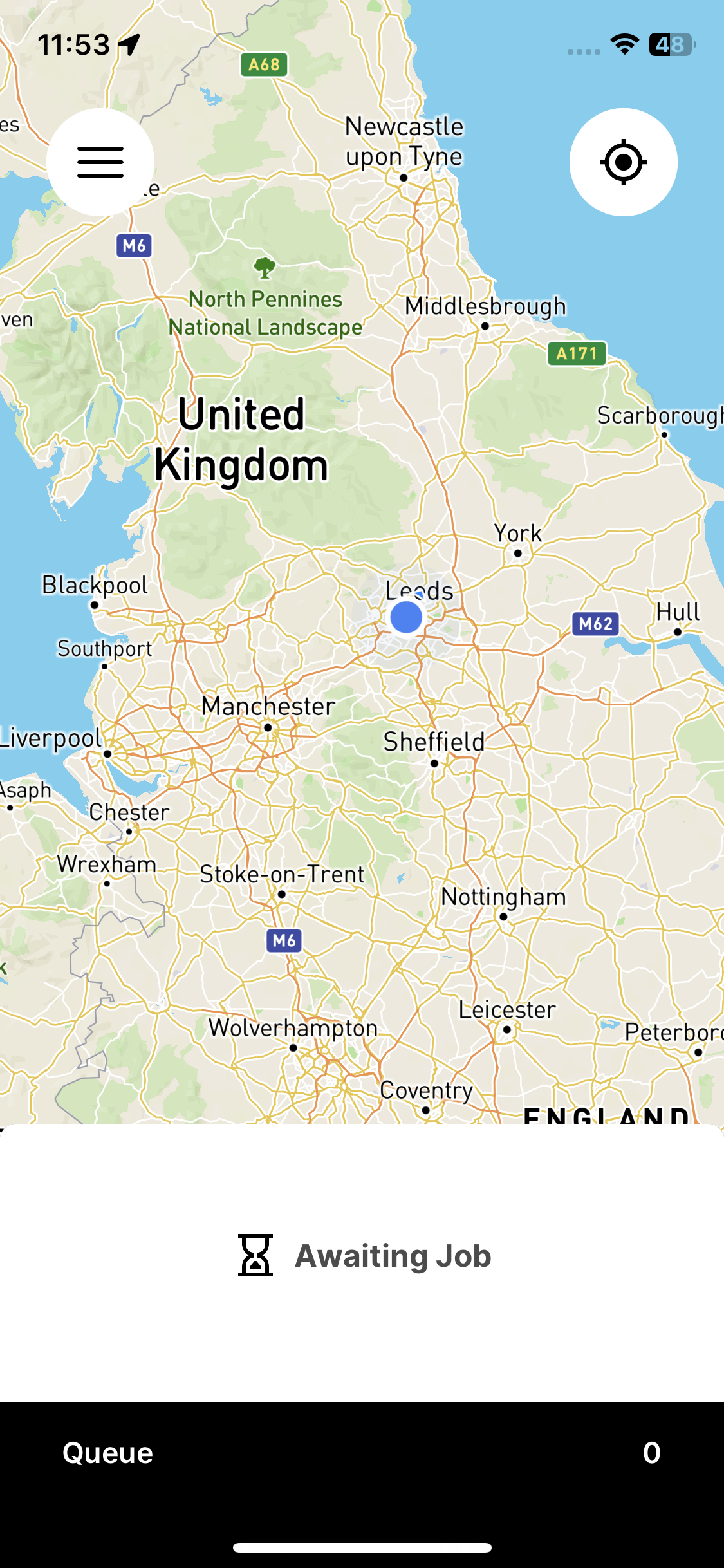
The main screen is where drivers manage live deliveries and view job progress.
Recenter Map
Drivers can use the Recenter button to automatically refocus the map on their current location. This helps ensure they always know their position relative to pickup and drop-off points.
External Navigation
When a job is active and in a ‘Go to Pickup’ or ‘Go to Drop’ status, an external map icon will appear.
This allows drivers to open the route directly in external navigation apps such as:
-
Google Maps
-
Waze
-
Apple Maps
This ensures drivers can use their preferred navigation tools while still tracking the job in the Driver App. Once a map provider has been selected, this will become the default map, this can be reset by navigating to Profile → Settings → Select ‘Reset Map Defaults’.
Job Timeline and Queue
-
Timeline
The Timeline view displays the full lifecycle of the job in one continuous view.
It shows each stage of the delivery in order, giving drivers clear visibility of progress from assignment through to completion. -
Queue
Displays an overview of all jobs currently assigned to the driver, including active and upcoming deliveries.
See our Managing Job on the Driver App guide for more information on job transitions and status in the driver app.
My Account Section
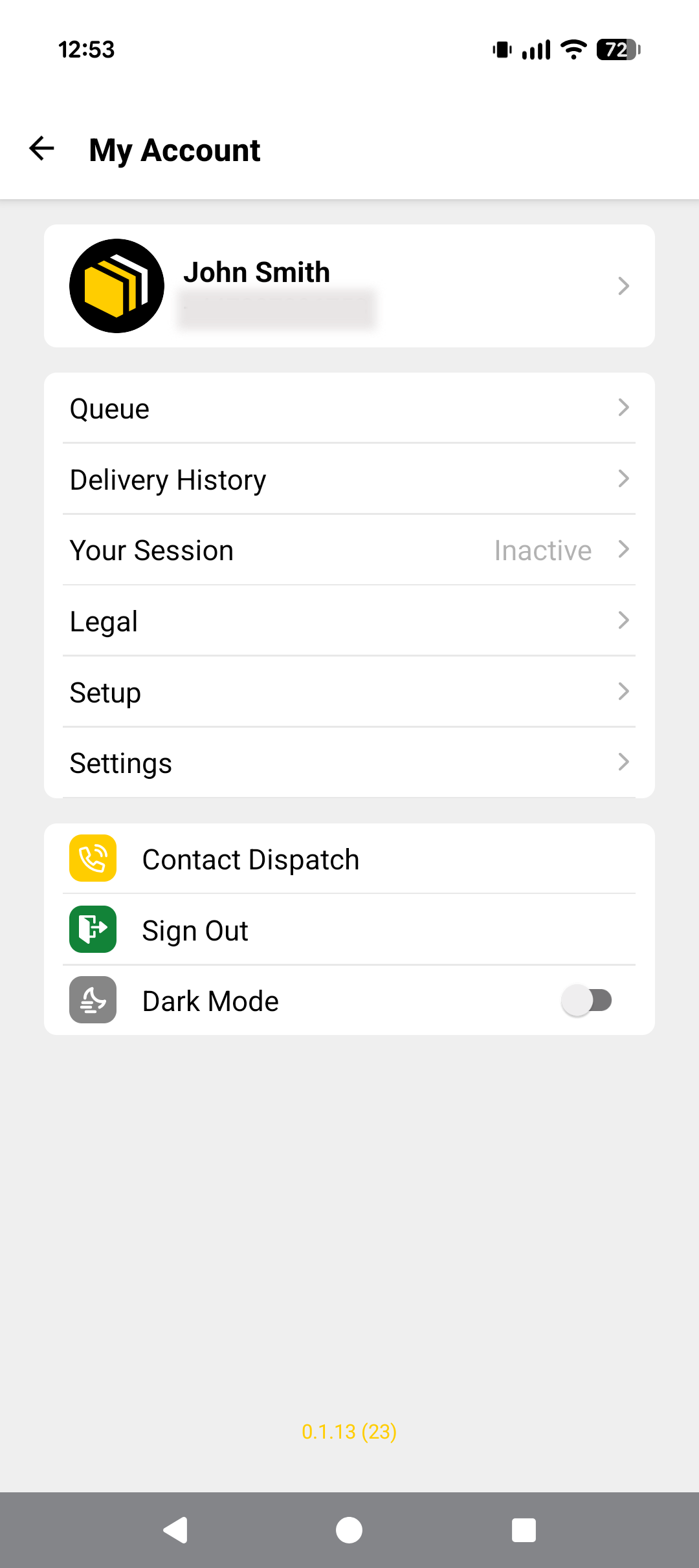
The my account section contains key driver information, settings, and performance data.
Profile
Drivers can update their personal details and view key setup information, including:
-
Assigned fleet information
-
Stack orders settings
-
Job rejection status
Queue
Displays an overview of all jobs currently assigned to the driver, including active and upcoming deliveries.
Delivery History
This section shows the number of jobs completed per day by the driver in a week by week view.
Your Session
Provides real-time operational data for the driver, including:
-
Time connected in the current session
-
Distance travelled today
-
Current status (Active / Inactive)
-
Contact dispatch
Legal
Contains all legal documents associated with the driver’s fleet, including terms and operational policies.
Setup
Provides guidance on device settings required for optimal app performance, including:
-
Push notifications setup
-
Location services configuration
-
Device volume recommendations
Settings
Allows drivers to manage app-level configuration options.
-
Reset Map Default – Resets the map view back to its default settings if the map has been moved, zoomed, or adjusted during use.
Sign Out
Allows the driver to log out of the application.
Dark Mode
Drivers can toggle between:
-
Light Mode
-
Dark Mode
This adjusts the visual appearance of the app based on preference.
How to Stop Receiving New Jobs
Drivers can stop receiving new job assignments at any time by setting their status to ‘Inactive’ within the Driver App.
When a driver deactivates themselves:
-
They will not receive any new job assignments
-
Any jobs already assigned to them must still be completed
-
The driver will remain active on their current deliveries until all assigned jobs are finished
Once all current jobs are completed, the driver will not be allocated further deliveries until they set their status back to ‘Active’.