
How to locate Jobs: Waybox Management → Jobs
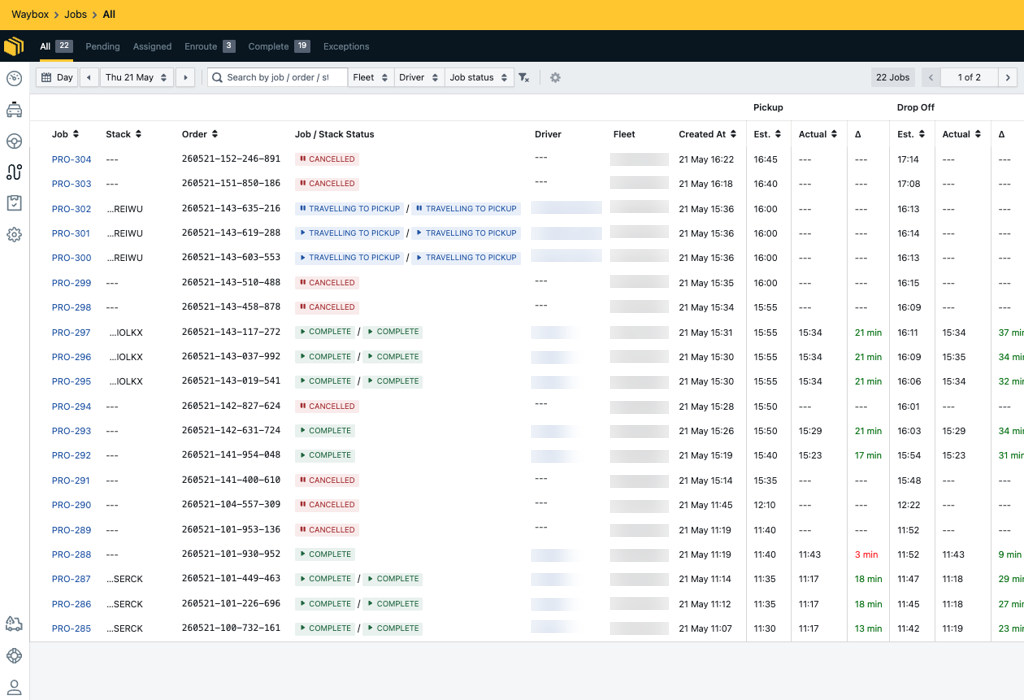
Within the ‘Jobs’ section, there are several tabs along the top toolbar:
-
All - All the jobs (default setting).
-
Pending - All pending orders.
-
Assigned - All jobs have been assigned to a driver, but not yet travelling to the pickup or drop-off.
-
Enroute - All jobs enroute to the pickup or drop-off.
-
Complete - All completed jobs.
-
Exceptions - All jobs assigned to the exceptions queue. See our Exceptions Queue guide for more information.
Jobs can be filtered in several ways:
-
Time periods
-
Day
-
Week
-
Month
-
Custom
-
All
-
-
Search by
-
Job
-
Order
-
Stack ID
-
-
Fleet
-
Driver
-
Job Status
Using the cog, you can enable/disable the following:
-
Auto Refresh
-
Off (default setting)
-
1 minute
-
5 minutes
-
10 minutes
-
30 minutes
-
Individual Job View
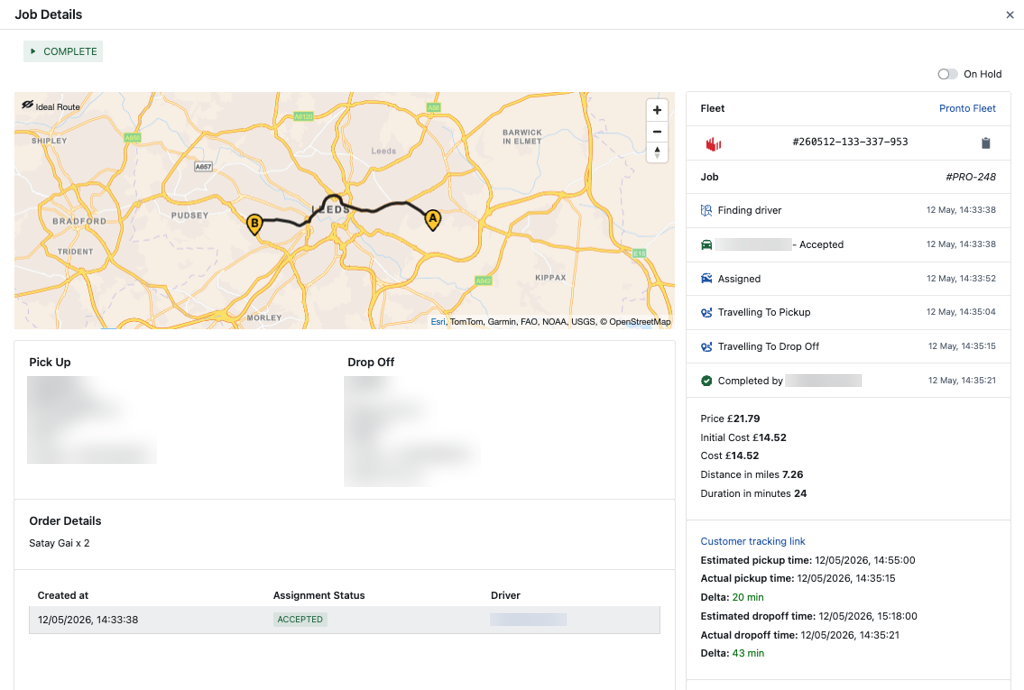
In the Jobs section, selecting a job will allow the user to view the following information on a job:
-
Map - A map displaying the route of the job
-
Order Details - details of the products which are included in the order.
-
Fees - details on the fees for this job
-
Assignment History - the history of the drivers who have been assigned this job
-
Tasks - the pickup and drop-off location
-
Proof of delivery - a picture taken at the drop-off, if one is available. ]
Jobs Status’s
-
Jobs which have been created but the associated order has not yet accepted by the outlet will display a ⏸️ pause sign next to the status. This means the job is on hold and the driver will not be instructed via the app to set off to the pickup.
-
Jobs which have been created and have been accepted by the outlet will display a ▶️ play sign next to the status. This means the job is active.
-
Jobs which have been created but not yet assigned to a driver will have the pending status.
-
Jobs that have been assigned to a driver but the driver does not need to travel to pick up yet will have the assigned status.
-
As the driver moves through the job, the job's status will be updated to the relevant leg of the job.
-
Once a job has been completed, it will display the complete status.
-
Jobs which have not been accepted by the outlet, or jobs that could not be assigned to a driver, will display the cancelled status.
-
Jobs which have been moved to the exceptions queue will display the exception status.
Managing Jobs in the Exceptions Queue
See our Exception Queue guide for further information.