
The management of the jobs and drivers is all done through the Waybox Management Portal. The Waybox Management Portal can be accesses at manage.waybox.systems. You will require an invite to access the management portal, which will be sent to you via email by your Product Specialist.
The navigation icons below are based on Partner User Access Level; other users may not have access to all of these icons. See User Access Level for more information.
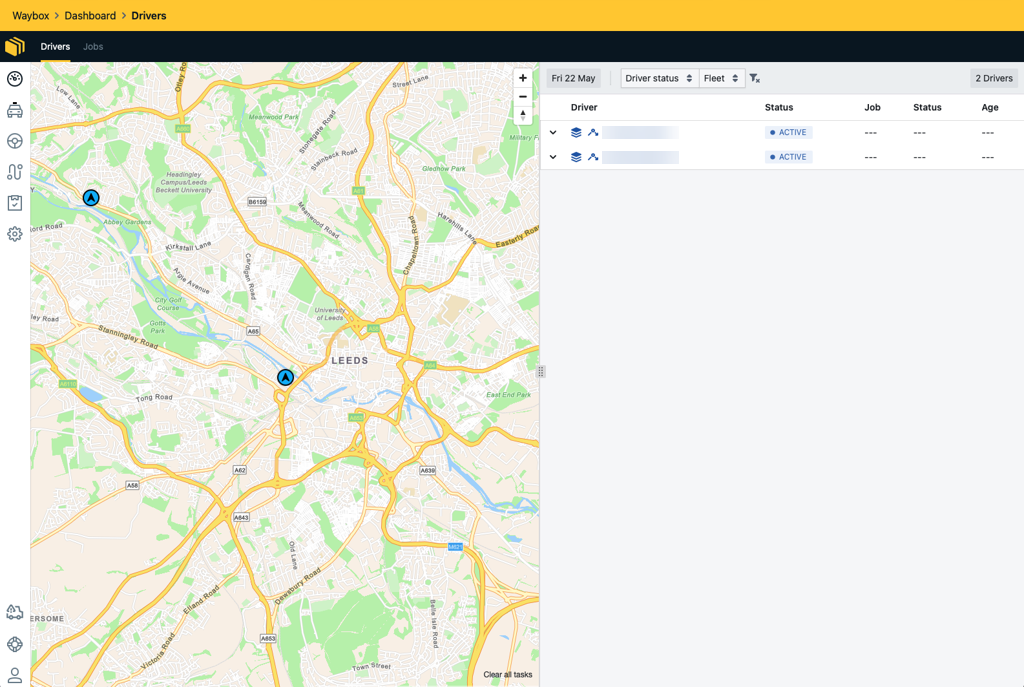
On the left of the Management screen (see above), there are multiple icons; this is the main navigation bar. This bar provides you with access to the Dashboard, Fleets, Drivers, Jobs, Reports, Administrator Settings, Exceptions, Support and Profile. Across the top of the screen, there are multiple tabs which vary depending on the screen selected.

|
Dashboard - This is an overview of the Drivers and Jobs. |
|---|---|

|
Fleet - This is a list of fleets associated with your user. |

|
Drivers - This is a list of drivers associated with your fleet. |

|
Jobs - This is a list of jobs associated with your fleet, by default displaying today. |

|
Reports - Various details reports for your fleet. |

|
Administrator Settings - This is a list of users associated with your fleet. |

|
Exceptions - This is a list of all jobs which could not be allocated to a driver and needs manual intervention. |

|
Support - System information and help desk. |

|
Profile - Edit your profile information and reset password facilities. |
Table of the main navigation bar in Waybox Management.